
Authentication & API keys
Find your test and live keys, authenticate server requests and keep credentials secure.
 Secret key
Store your key securely on the server.
 Authorized request
Send it in the Authorization header.
 Strongmb API
The key identifies your account and environment.
Your API credentials
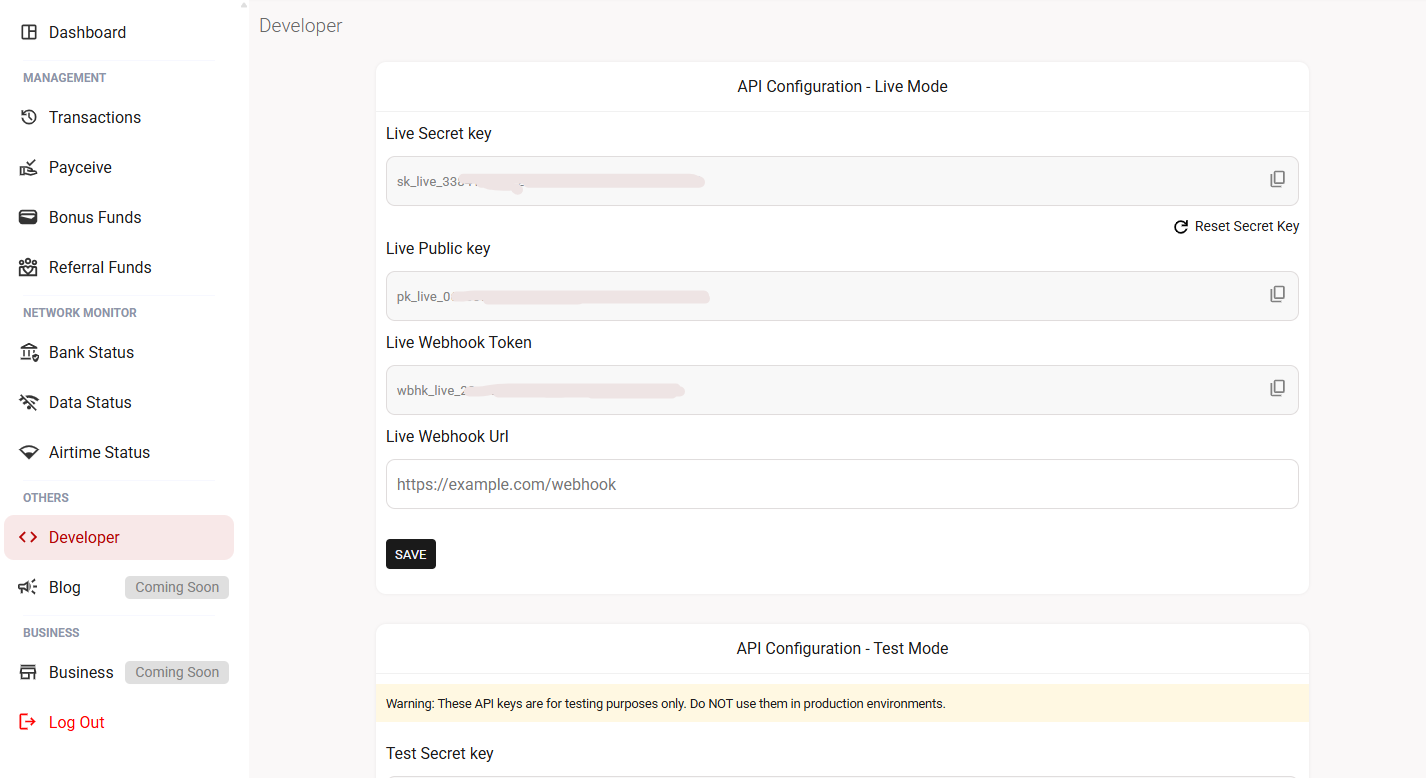
API keys identify your Strongmb account and authorize your server to access account details, products and purchases. Credentials are created when you create a Strongmb account. Open the Developer section to view the live and test credentials.
| Credential | Example prefix | Use in this version |
|---|---|---|
| Test secret key | sk_test_xxx | Authenticate server requests in the test environment. |
| Live secret key | sk_live_xxx | Authenticate production server requests. Live purchases affect your account. |
| Public key | pk_test_xxx / pk_live_xxx | Reserved for a future version. Not used to authorize the current REST API. |
| Webhook token | wbhk_test_xxx / wbhk_live_xxx | Reserved for a future version. Webhook-token verification is not available in this version. |
Get your API key
- Sign in to Strongmb.
Open the dashboard login page. If you do not have an account, follow the account setup guide.
- Open your dashboard.
Complete any account prompts shown after sign-in.
- Open the menu at the top left.
Select Developers to open your developer settings.
- Choose Live or Test keys.
Use the secret key for the environment you are integrating with. Public keys and webhook tokens may be visible, but they are not active API authentication methods in this version.
- Copy the secret key to your server environment.
Store it as
STRONGMB_API_KEY. Do not paste it into frontend JavaScript or a mobile app bundle.
Authorize server requests
Send your secret key in the Authorization header on every request. The header value is the word Bearer, a space, then the key.
Authorization: Bearer YOUR_SECRET_KEY
Use Content-Type: application/json when sending a JSON request body. Do not put the key in a URL query parameter, and do not add a colon after Bearer.
Example: authenticate with Node.js
// Server-side Node.js 22+.
async function readAccount() {
  const secretKey = process.env.STRONGMB_API_KEY;
  if (!secretKey) throw new Error("Set STRONGMB_API_KEY on your server");

  const response = await fetch("https://api.strongmb.ng/v1/user", {
    headers: {
      Authorization: `Bearer ${secretKey}`,
      Accept: "application/json"
    },
    signal: AbortSignal.timeout(30000)
  });
  const result = await response.json();
  console.log(response.status, result);
}
readAccount().catch(console.error);
This example targets the live API. For testing, use the test secret key with the sandbox base URL described in Environments & base URLs.
Authenticate through a backend SDK
With a Strongmb backend SDK, provide the secret key when initializing the library. The client adds the authentication header for you. You do not need to construct the header manually for every SDK call.
const strongmb = new Strongmb(process.env.STRONGMB_API_KEY);
Follow the installation and imports in the Node.js SDK guide, PHP guide or Python guide. Constructor options and naming vary by language.
Protect and rotate your keys
- Keep keys in an environment variable or secret manager on your server.
- Keep test and live configuration separate.
- Redact Authorization headers from logs, screenshots and support messages.
- Never commit a key to Git, including a private repository.
Resolve an authentication error
| Code | What to check |
|---|---|
ERR_MISSING_AUTH_HEADER | The request contains Authorization and your proxy forwards it. |
ERR_INVALID_AUTH_HEADER | Use Bearer followed by one space and the secret key. |
ERR_INVALID_SECRET_KEY | Check the environment, copied value and whether the key was reset. |
Do not repeatedly retry with invalid credentials. Correct the configuration first. Read error handling for request diagnostics.
Questions? Let’s work through them.
Having an issue or need help with your integration? Join the Strongmb Slack community to ask questions and get assistance from our team and other developers.
Keep API keys and customer details private when sharing examples.
Experiencing a service issue? Check Strongmb’s service status for incident updates.
Did this page help you?
Up to 100 characters. Please leave out personal details, account information and API keys.